Notification
Notifications are a feature that informs you of changes in subscribed folders and the results of approval requests. You can check notifications from the notification icon at the top of the screen, and by clicking on a notification, you can directly navigate to the corresponding folder or file.
1. Check Notifications
- Click the notification icon (My Notifications) at the top right corner of the screen.
- Check the latest notifications in the notification window.
- Clicking on the notification to check will take you to the corresponding location, and the notification will be marked as read.

- If there are unread notifications, a red dot will appear on the notification icon.
- Scrolling down the notification window will load previous notifications.
2. Notification Window Configuration
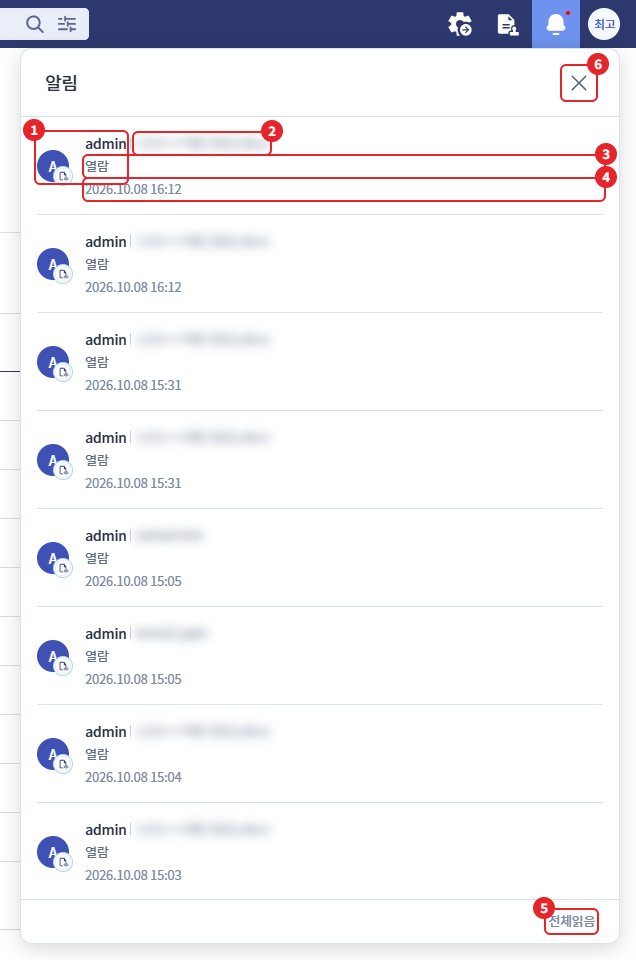
| number | item | Explanation |
|---|---|---|
| 1 | worker | Profile image of the user who made the change (first letter of the name if not available) and name |
| 2 | Target | Changed folder/file names |
| 3 | content | Changes (e.g., file creation, folder movement, comment registration) |
| 4 | Date and Time | Notification Occurrence Date and Time |
| 5 | [Read All] | Mark all unread notifications as read |
| 6 | Close | Close notification window |
- Read notifications and unread notifications are displayed in different styles.
- The approval result notification displays the approval status icon instead of the worker, and the target area shows "File Name / Upload" or "File Name / Download".
3. Location to Move When Clicking Notification
| Notification content | Movement Location |
|---|---|
| File creation, renaming, restoration, file viewing, editing, downloading | Open the file |
| Copying and Moving Files and Folders | Folder at the copied/moved location |
| Creating a folder, changing folder name·description·tags, restoring·downloading a folder | the folder |
| File Tag · Change Description | Folder with files |
| Comment Registration, Modification, Deletion | Folders with comments (File comments are in the folder where the file is located) |
| Subscription settings, user invitation and withdrawal, permission changes | the corresponding folder |
| Delete File/Folder | No movement (read only) |
| Approval Result | Open Approval Request Box |
- The target file or folder may not open if it has been deleted or moved afterwards, or if there are no access permissions.
4. Setting Up Subscriptions
By subscribing to a folder, you will receive notifications when other users work in that folder. Subscriptions are set on a folder basis.
- Select the folder to subscribe to from the file list.
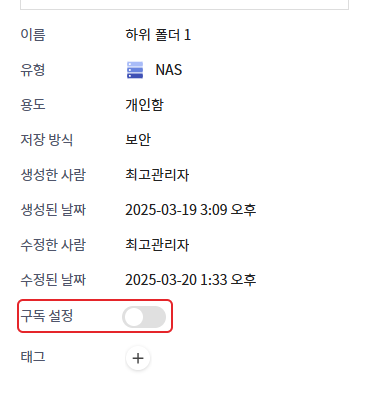
- Turn on the [Subscription Settings] switch in the [Detailed Information] tab of the right detail slide.
- To unsubscribe, turn off the same switch.
| item | content |
|---|---|
| Notification Target | Changes to subscribed folders and the files/folders directly within those folders |
| Recipient of notifications | Users subscribed to the folder (excluding the user who worked on it) |
| Supported Storage | Storage with secure storage method (regular storage does not display [subscription settings]) |
- If subscription settings fail, a message "Subscription setting failed" / "Subscription cancellation failed" will be displayed. Please try again later.
- The work you have done will not be notified.
5. Types of Notifications
| division | Notification content | Receiving Conditions |
|---|---|---|
| Folder Change | Create folder, rename, change description·tags, move, copy, delete, restore, download | Folder Subscription |
| File Change | File creation, renaming, description·tag change, moving, copying, deleting, restoring, viewing, editing, downloading, version restoration | Folder Subscription |
| comment | Comment Registration, Modification, Deletion | Folder Subscription |
| Share | User Invitation/Withdrawal, Shared Folder Member Change, Permission Change | Folder Subscription |
| Approval Result | Approval, Rejection, Request Cancellation, Upload Failure, Deadline Expired, Download Period Expired | Approval requested by oneself (unrelated to subscription) |
The notification message for the approval result is as follows. (When using the approval feature)
| result | Notification message |
|---|---|
| Upload Approval | Approved. The file will be automatically uploaded. |
| Download Approval | Approved. You can download the file from the approval request. |
| companion | It has been rejected. You can check the reason for rejection in the approval request. |
| Request Cancellation | The approval request has been canceled. |
| Upload failed | Approval has been completed, but the file upload has failed. |
| Expiration | The deadline has passed and it has ended. Please request again. |
| Download period expired | The file download period has expired. |
Please refer to the "Approval Request Guide" for how to process approval requests.
6. Notification Retention Period
- Notifications are retained for 15 days from the date of occurrence and will be automatically deleted thereafter.
- It will be deleted after the retention period, regardless of whether it has been read.
Reference - Difference from Task Progress Notification: The progress status of tasks I have executed, such as uploading and downloading, is displayed in the task progress notification at the bottom right of the screen, not in the notification window. For more details, please refer to the "Screen Layout" document.